How to move your blog from Blogger to WordPress
A step-by-step guide · takes about 30 minutes
Do you want to transfer your blog from Blogger to WordPress? Blogger is a great free way to start blogging, but many bloggers soon want to switch to WordPress for more control over their site’s design, features and content.
In this guide, we’ll show you how to move from Blogger to WordPress in less than 30 minutes, without losing any content.
Step 1 – WordPress hosting
To get started with WordPress, you need two things:
- A domain name – your site’s web address, for example
myblog.com. - WordPress hosting – where your website is stored.
If you already use your own domain name on Blogger, you can keep using it with your new WordPress site.
For hosting, we recommend Bluehost. It installs WordPress for you when you sign up, and you can register a new domain name or use the one you already have.
Simply choose a WordPress hosting plan on Bluehost’s website, then come back here once WordPress is installed. Any other WordPress host will work too, but Bluehost offers the best quality service at very competitive rates.
Create your WordPress siteStep 2 – Log in to WordPress
After you sign up, Bluehost installs WordPress on a temporary address. This means your live blog on Blogger won’t change until you’re ready to launch the new WordPress site.
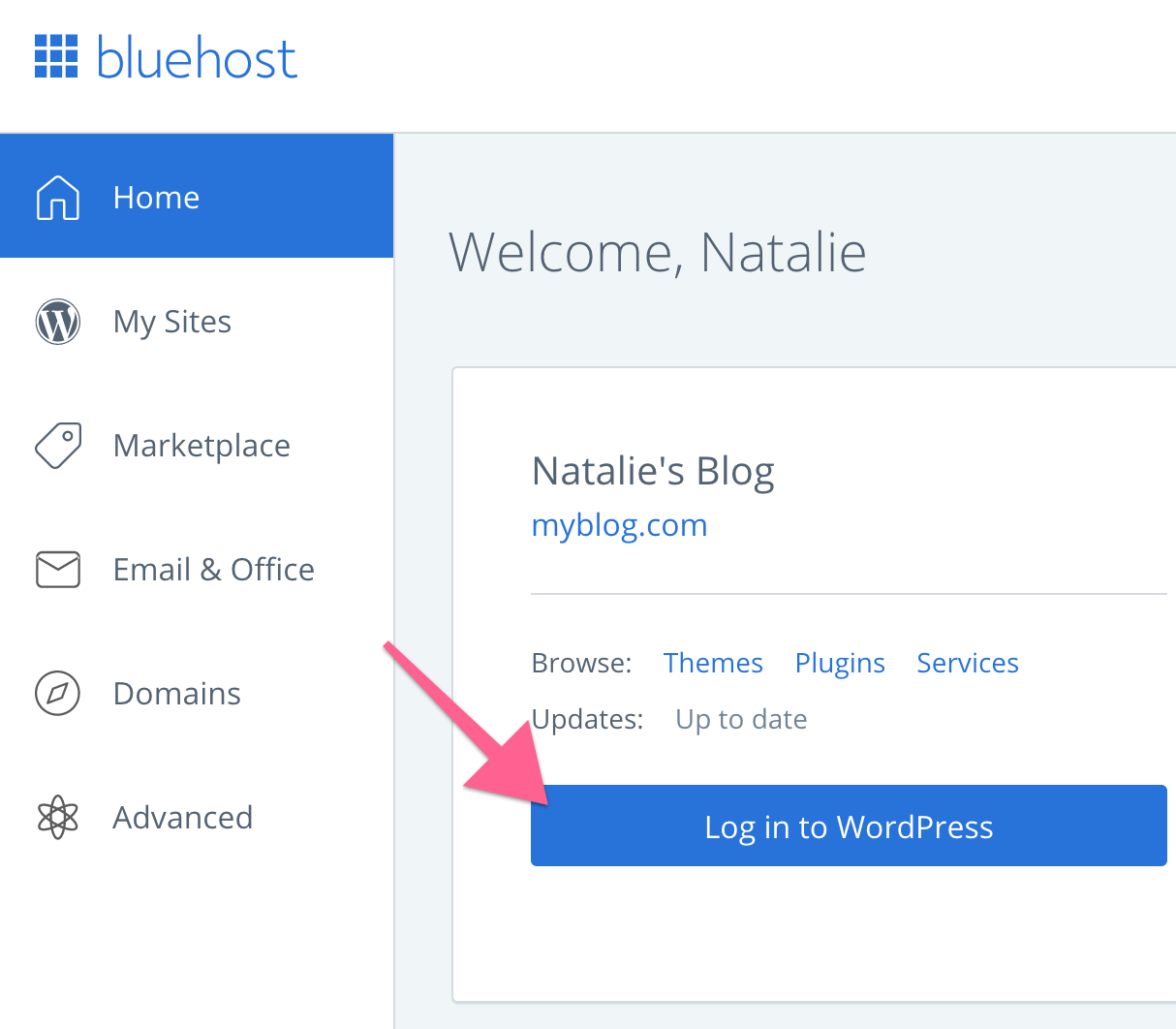
Log in to your WordPress dashboard from your Bluehost account by clicking the “Log in to WordPress” button shown below:
Step 3 – Import your content from Blogger
Now you’re logged in to your new WordPress dashboard, let’s import your content from Blogger:
-
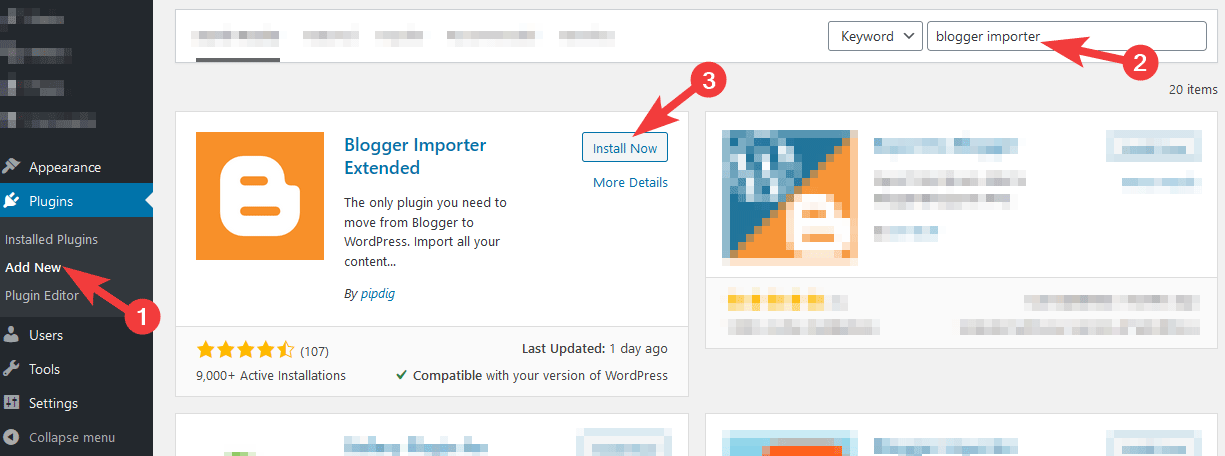
Go to the “Plugins → Add New” page, then search for “Blogger Importer Extended” at the top right of the screen, like the example below:
-
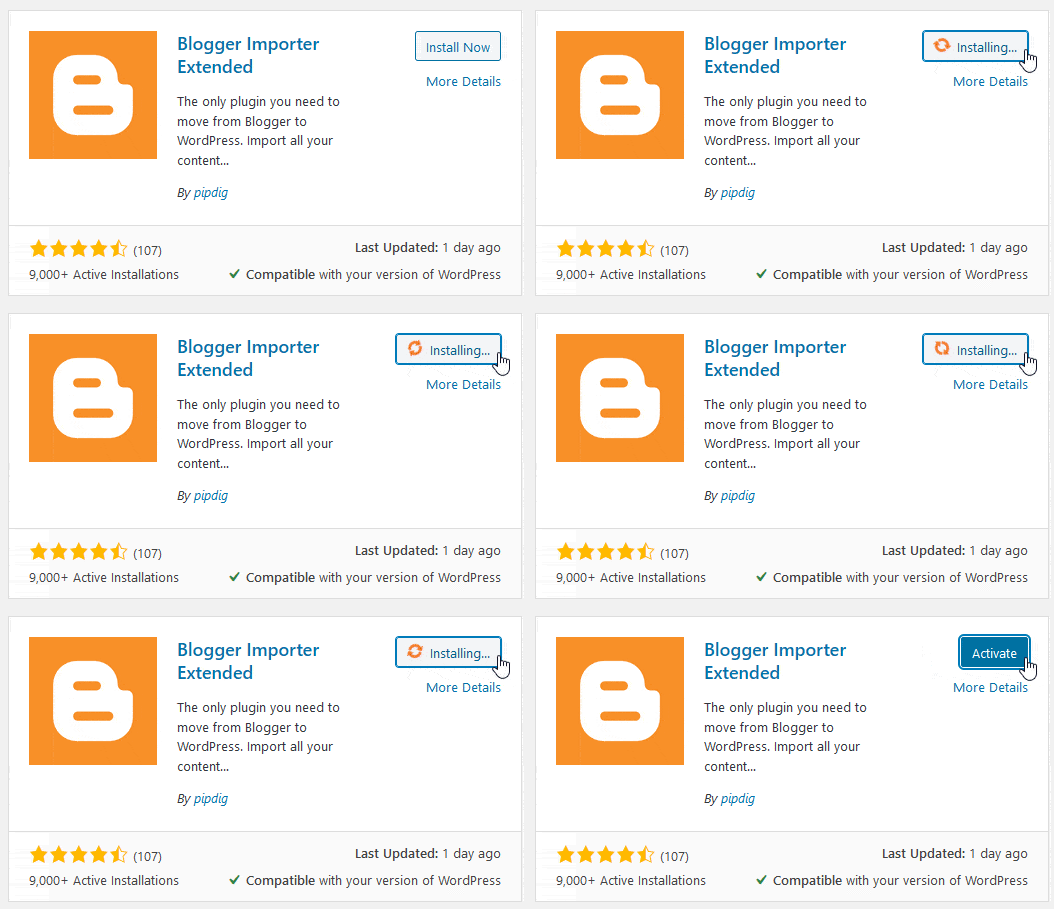
Click the “Install Now” button, then click “Activate”:
-
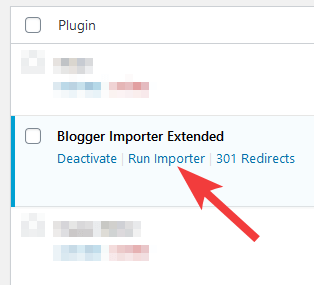
On the Plugins page, find “Blogger Importer Extended” and click “Run Importer”:
-
Follow the steps on screen to connect your Blogger blog and import all your content:
The free version imports up to 20 posts and pages, with their comments, images and labels. If your blog is bigger, buy a license to import everything and enter your license key in the plugin. Your key is shown and emailed to you as soon as you’ve paid.
-
Go to the “Settings → Permalinks” page in your WordPress dashboard.
-
Copy and paste
/%year%/%monthnum%/%postname%.htmlinto the “Custom Structure” setting shown below, then click the “Save Changes” button: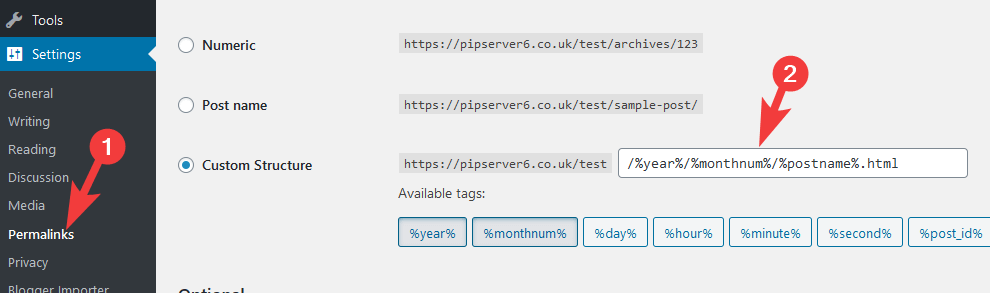
This keeps your post links the same as they were on Blogger, so you won’t lose any Google ranking.
-
Finally, go to the “Settings → Blogger Importer” page and make sure both redirect options are switched on, like the screenshot below:
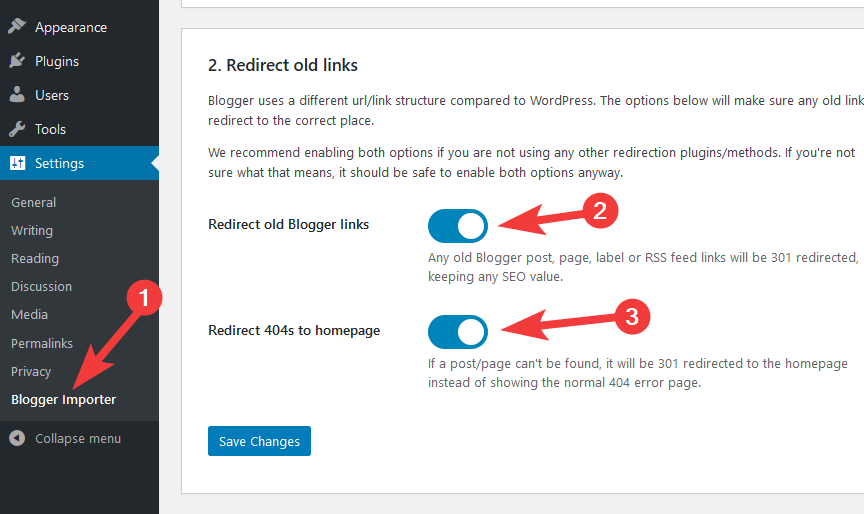
Visitors and search engines following your old Blogger links will then be sent to the same posts on WordPress with 301 redirects.
That’s it, your content is now imported from Blogger!